

Use a simulated OPX
Use a lab configured for simulation with a Quantum Machines OPX row. These instructions are for the simulated instrument, not a physical OPX.
- Connect your computer and leave the user profile running. In the connections list, find the entry whose
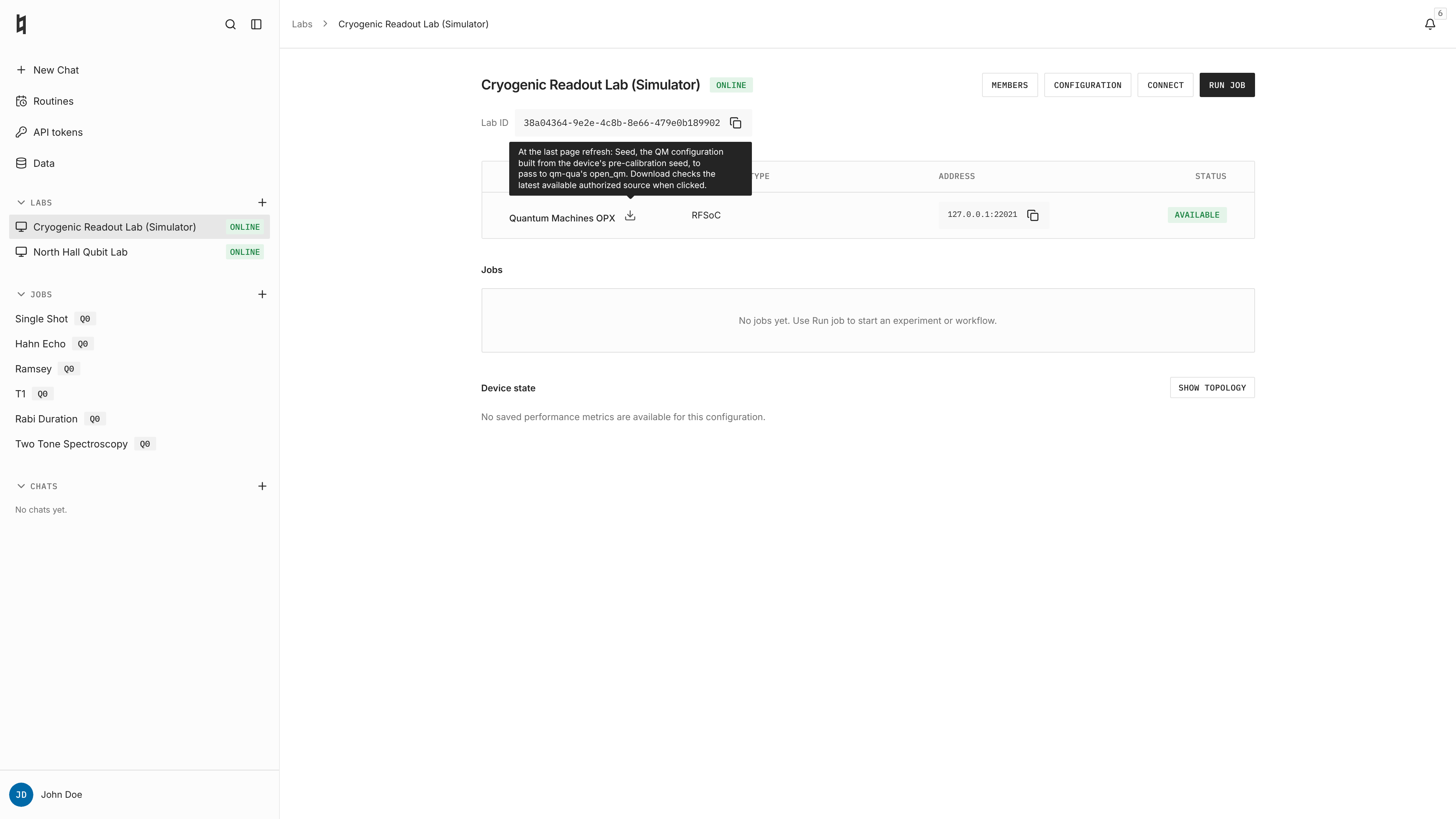
driverisqm. Note itsproxy_hostandproxy_port. - In the lab’s Instruments table, select Download QM configuration beside the OPX name. The tooltip identifies the seed configuration or the calibrated configuration saved by a job.
- In the environment for your QUA program, use
qm-qua1.4.1 and NumPy. GiveQuantumMachinesManagerthe listed host and proxy port, not the OPX’s own port. Load the downloaded JSON and pass it toopen_qm. - Run your program against that quantum machine. Open the resulting QUA Program job in Control to inspect its saved files.
For example, in an existing Python program where port is the listed proxy port and config is the downloaded configuration dictionary:
The longer connection timeout allows Control to start the simulated OPX after an idle period. Close the quantum machine with machine.close() when your program finishes. If the OPX or its download is missing, ask your lab manager to check the lab configuration.